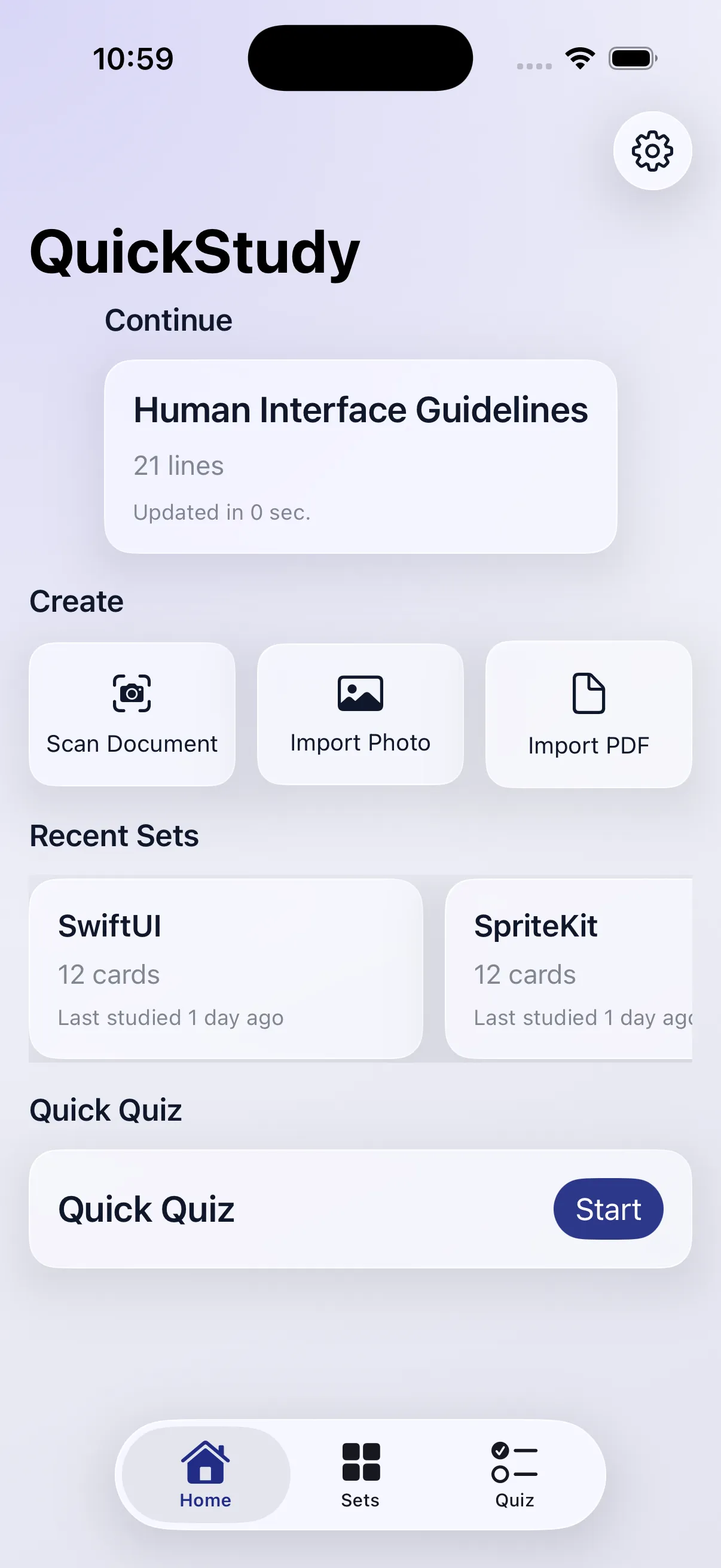
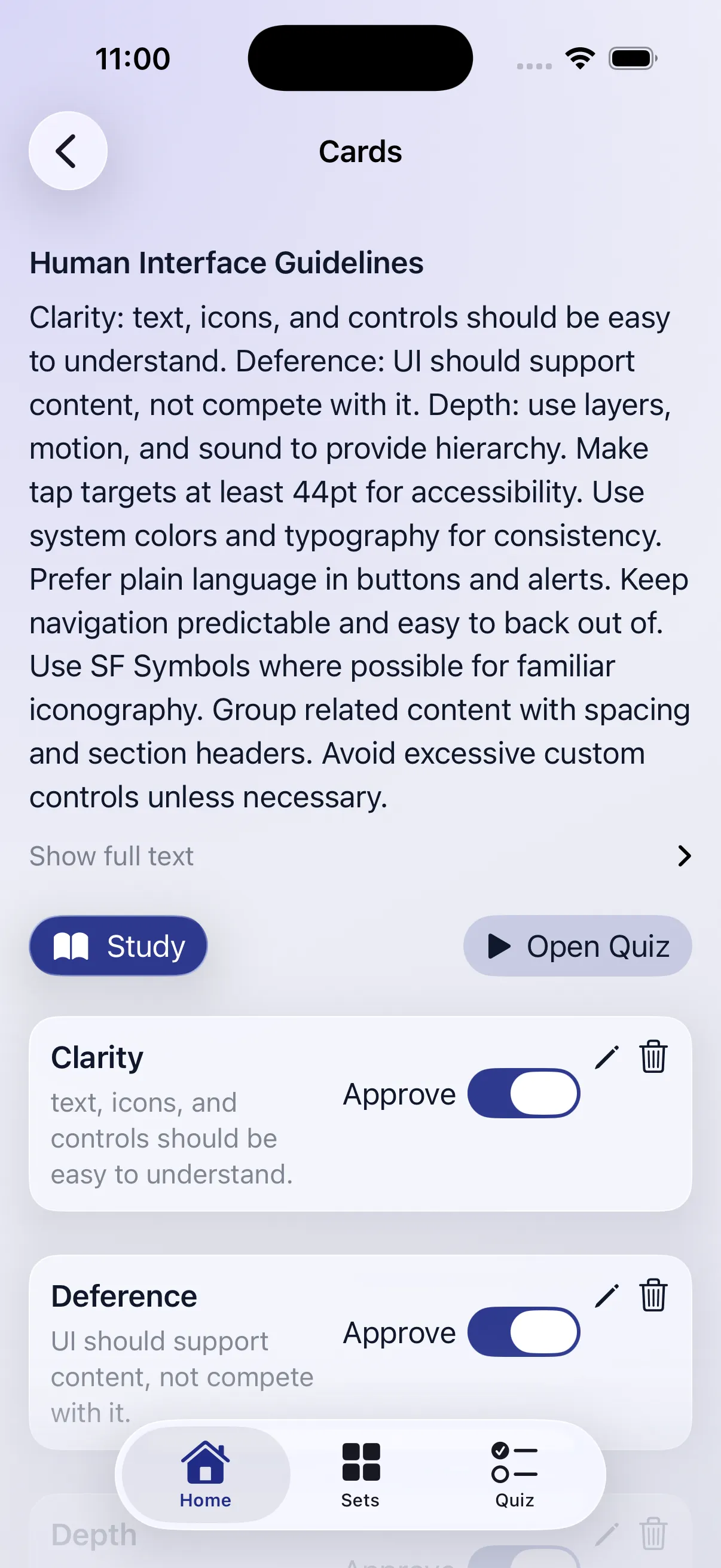
A captured page runs through OCR and generation, then lands in the review list where you decide what is worth keeping.
Overview
QuickStudy takes you from notes to practice without the busywork. Scan a page or import a PDF, let the app generate flashcards, then approve what is worth keeping before you study.
Generation runs on device through Foundation Models, so there is no account and nothing leaves the phone. The AI does the heavy lifting, but you decide what belongs in the deck.
The problem
Turning notes into a usable deck normally means scanning, cleaning up the text, writing every card by hand, and only then starting to review.
VisionKit OCR on a handwritten page comes back with broken words, merged lines, and stray characters that poison everything downstream.
On-device generation is not available on every device, and even supported ones can fail on low memory.
Generated cards include repeats and filler, and a noisy deck is worse than no deck at all.
Approach
01
Clean before you generate
A Core Image pass desaturates, boosts contrast, and sharpens the capture before Vision sees it, then a text cleanup pass trims junk characters and repairs spacing and line breaks.
02
Plan for AI that is not there
When Foundation Models cannot run, a backup path chunks the cleaned text into card-sized pieces so you still get a usable deck, with UI copy that says what happened instead of failing silently.
03
Approve before you save
Generated cards land in a review list where each one toggles on or off. Only approved cards reach study and quiz mode, so decks stay focused.
04
One protocol, many models
A CardGenerating protocol defines generation, distractors, and quizzes, so swapping between the on-device model and an external provider changes nothing at the call site.
Technical highlights
Handwriting preprocessing - CIColorControls plus CIUnsharpMask before OCR measurably improved recognition on handwritten pages.
Provider abstraction - A single request path handles both OpenAI-compatible and Anthropic APIs, switching auth headers and body shape based on the selected provider.
Keychain storage - External API keys are stored as encrypted generic passwords through Keychain Services rather than in plaintext defaults.
Local-first persistence - Decks and study history live on device through AppStorage and UserDefaults, so the app works with no account and no network.
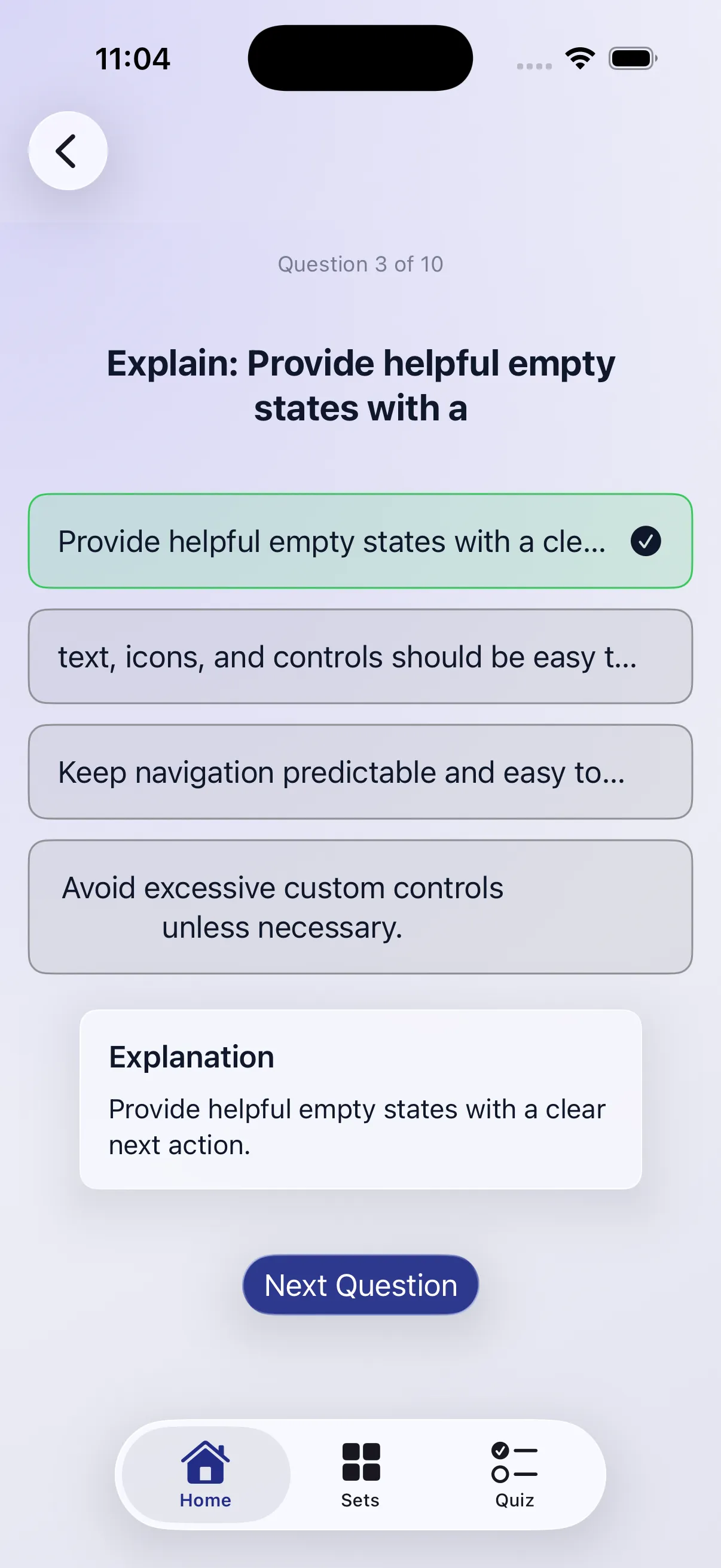
Distractor generation - Quiz mode builds multiple choice questions from approved cards, generating plausible wrong answers from the source text rather than from other cards.
Screens
Import Source
Scan a handwritten note or import a PDF, with OCR running before generation.
Card Review
Toggle each generated card on or off before anything is saved.
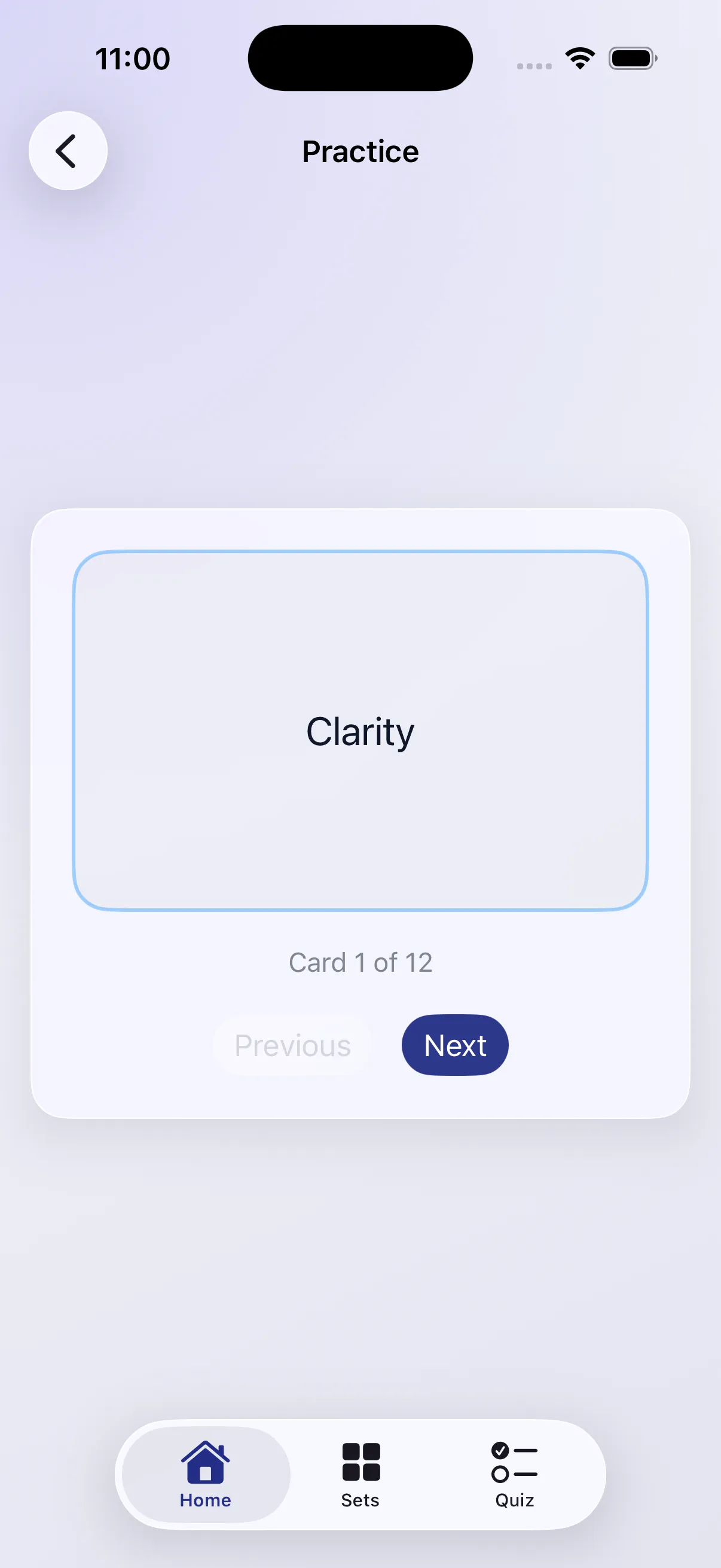
Flashcard Practice
Swipe through approved cards with a tap to reveal the answer.
Quiz Mode
Multiple choice questions built from your approved set, with misses circling back.
Code
Handwriting Processing for OCR
Swift
Runs a Core Image pipeline to desaturate, boost contrast, and sharpen a captured image before passing it to Vision for OCR, significantly improving handwriting recognition accuracy.
Handles both OpenAI-compatible and Anthropic APIs through a single request path, switching auth headers and body format based on the selected provider.
Stores API keys as encrypted generic passwords using iOS Keychain Services, keeping credentials out of plaintext storage.
enum KeychainManager {
    private static let service = "com.jaidenhenley.quickstudy"
    private static let account = "external-api-key"

    static func saveAPIKey(_ key: String) throws {
        let data = Data(key.utf8)
        let query: [String: Any] = [
            kSecClass as String: kSecClassGenericPassword,
            kSecAttrService as String: service,
            kSecAttrAccount as String: account
        ]
        SecItemDelete(query as CFDictionary)
        let attributes = query.merging([kSecValueData as String: data]) { _, new in new }
        let status = SecItemAdd(attributes as CFDictionary, nil)
        guard status == errSecSuccess else {
            throw CardGenerationError.keychainError(status)
        }
    }
}
What is next
Next I’m keeping it focused and polishing what’s already there. I want OCR to feel more consistent with clearer scan feedback and fewer messy results, and I want the review step to be faster with bulk approve and quick edits so fixing a bad card doesn’t slow everything down. On the study side, I’m tightening the swipe experience, making progress clearer, and adding a simple “review missed questions” loop in quiz mode. If I have time after that, I’ll add lightweight stats like accuracy and streaks so you can actually see improvement.
Outcome
2Import sources
3Study modes
0Accounts required
100%On-device generation
The approval step is the part I would keep in any version of this app. AI is good at producing volume and bad at knowing what matters to you, so putting a human gate between generation and the saved deck is what makes the output trustworthy. Building the fallback path also forced me to treat on-device AI as a capability that may not be there, which is a better default than assuming it will be.